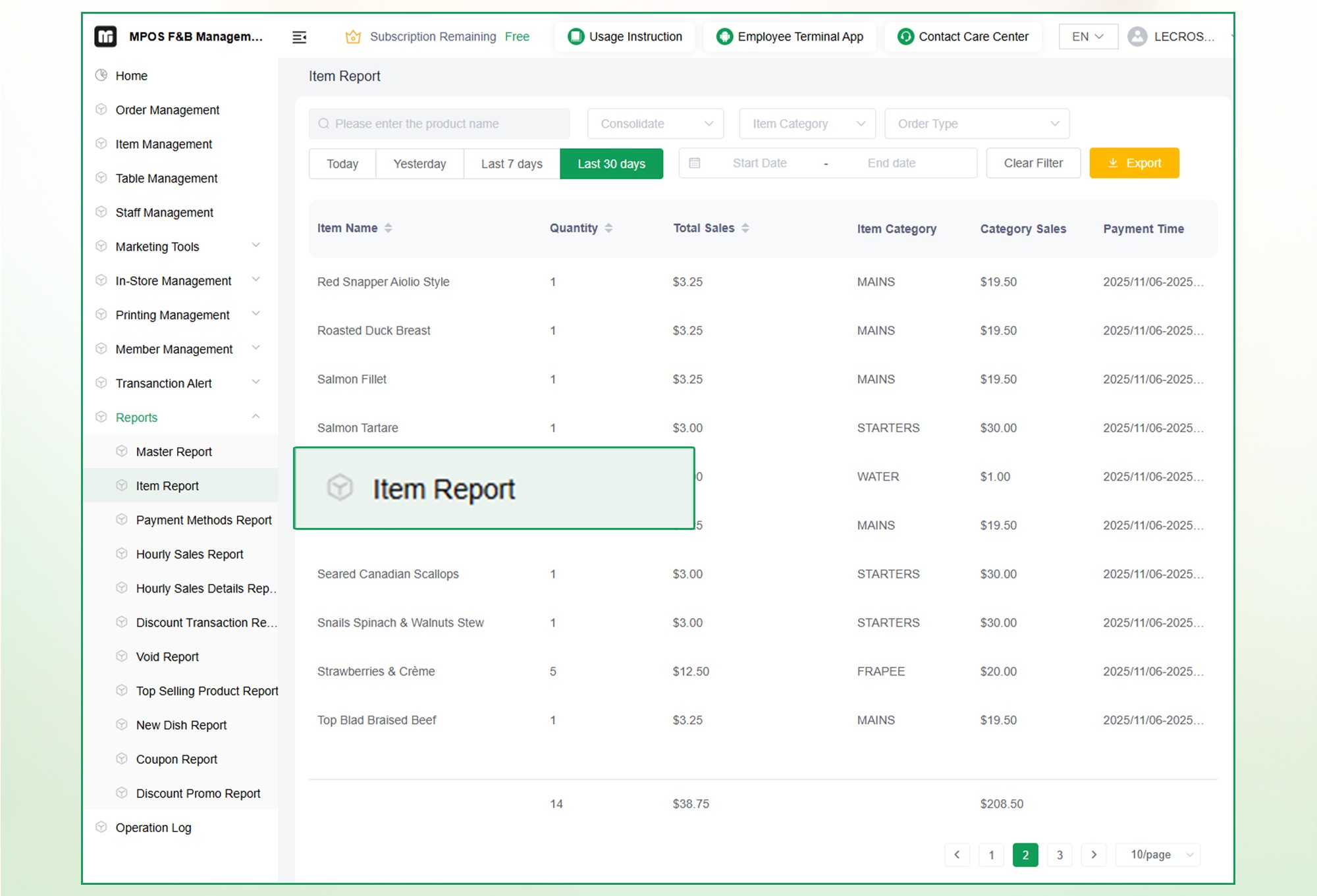
For businesses using the MPOS system, the Item Report feature serves as a powerful central hub for tracking sales performance, managing inventory flow, and understanding customer preferences in real-time.
Whether you are looking to trim the fat on slow-moving stock or double down on your bestsellers, mastering this reporting tool is essential for scaling your operations.
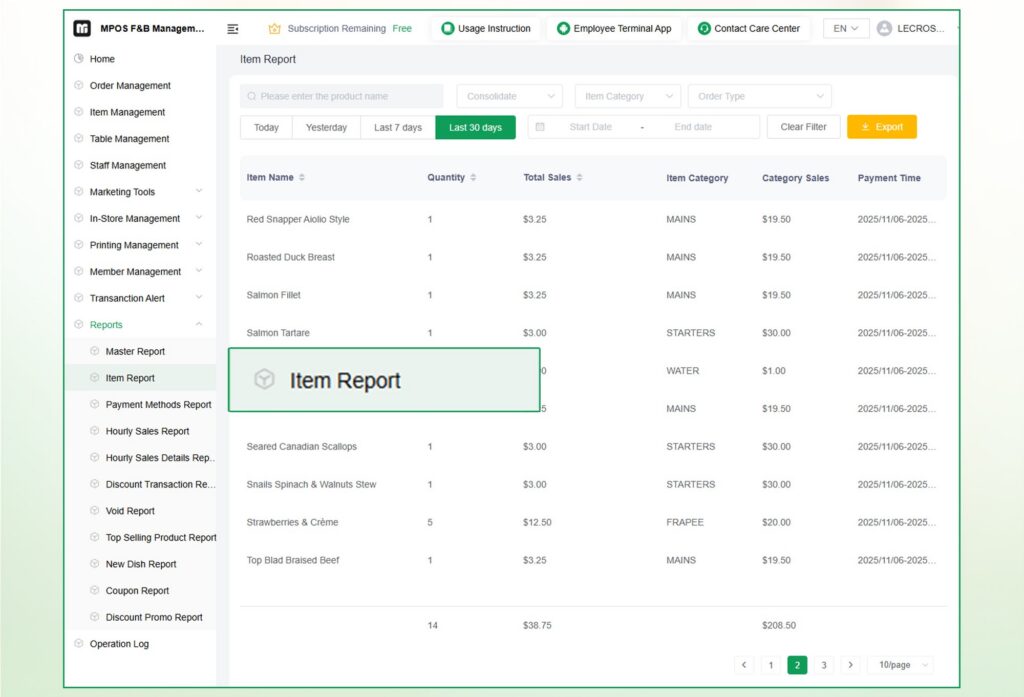
1. What is the MPOS Item Report?
The Item Report is a comprehensive analytical dashboard designed to give merchants a granular view of every product sold. Unlike general sales summaries, this feature breaks down data by individual items, categories, and specific timeframes, allowing for high-level oversight and deep-dive audits.
2. Advanced Filtering: Precision Data Retrieval
The top navigation bar of the Item Report is engineered for speed, allowing you to slice and dice your data to find exactly what you need.
- Search Bar: Located at the top left, this allows for immediate filtering by specific Item Names. If you have a massive inventory, this is the fastest way to check the performance of a single SKU.
- Consolidation Dropdown: This critical function allows you to switch between a Consolidated view (grouping identical items together to see total volume) or a Detailed view (seeing every individual transaction).
- Item Category: Filter your report by specific departments (e.g., “Apparel,” “Beverages,” or “Electronics”). This helps identify which product categories are your heavy hitters and which are underperforming.
- Order Type: Distinguish between different sales channels, such as “In-store,” “Delivery,” or “Online Orders,” to see where your customers are most active.
- By Item / By Category Toggle: This allows you to re-orient the entire report structure based on your current goal—whether you are auditing individual stock or assessing broad department revenue.
3. Time-Based Analysis: Real-Time & Historical
Timing is everything in sales. The MPOS system provides two ways to track your timeline:
- Quick-Select Buttons: For instant updates, use the Today, Yesterday, Last 7 Days, and Last 30 Days buttons. These are perfect for daily morning briefings or monthly performance reviews.
- Custom Date Range: Use the Start Time and End Time calendar pickers for deep-dive audits, such as comparing year-over-year holiday sales or specific promotional windows.
- Action Buttons: Once your filters are set, click the green Search button to generate the report. Use the Reset button to quickly clear all parameters and start a new query.
4. Key Functional Components
As seen in the dashboard interface, the Item Report is built for speed and precision. Here are the core elements that help you filter through the “noise” to find actionable insights:
- Dynamic Search & Filtering: Quickly locate specific products or narrow down results by Item Category and Order Type.
- Consolidated vs. Detailed Views: Switch between “Consolidated” views for a big-picture summary or “By Item” for specific transaction details.
- Time-Range Flexibility: Use pre-set buttons for Today, Yesterday, Last 7 Days, or Last 30 Days. For deeper historical audits, the custom Start/End Time picker allows for precise date-range reporting.
- Export Capabilities: The yellow Export button allows you to download your data into spreadsheets (CSV/Excel) for external accounting or advanced data visualization.
5. Data Points You Can Track
The report table provides several critical columns that help you measure the health of your inventory:
| Column Name | Functional Importance |
| Item Category | Organizes items logically for inventory management. |
| Item Name | The specific product identifier. |
| Qty (Quantity) | Shows the volume of units sold. High Qty often indicates high demand/low margin “movers.” |
| Weight | Critical for businesses selling by mass (e.g., kilograms or grams). It ensures precision in stock deduction for weighted goods. |
| Total Price | The gross revenue. Compare this with Qty to identify high-value “luxury” items vs. high-volume “staple” items. |
| Payment Time | Timestamps every sale, allowing you to track peak hours and optimize staff scheduling. |
MPOS – Cambodia’s trusted digital restaurant POS provider, trusted by 1000+ restaurants across Cambodia, and reliable local tech support included
Do you want to see how it works? Contact us now for a demo. Phone / Telegram: +855 11 223 319
Leave a Reply